

BARX Africa Installation Guide
Welcome to the BARX Africa trading platform. This guide details step-by-step instructions on how to get BARX Africa up and running on your computer. Please ensure your computer meets our system requirements before you begin.
Refer to our troubleshooting guide if you encounter problems during the installation.
Step 1: Download your Barclays digital certificate.
» Download your personal certificate.
Log-in to the secure website using your Barclays username and password (sent via e-mail) and follow the on-screen instructions.
Refer to the troubleshooting guide if you encounter problems during the certificate download process.
Step 2: Download BARX Africa.
> .
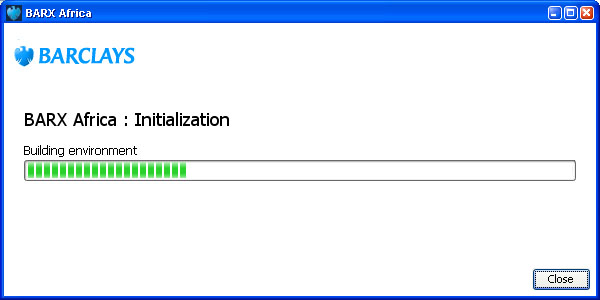
Consult our troubleshooting guide if you do not get a Java download window similiar to the one above.
Step 3: Login to BARX Africa.
Enter your Barclays Africa username and password at the login screen and click Login.
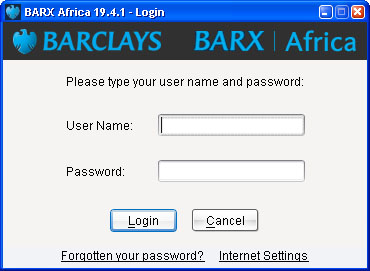
If you have problems connecting, check your proxy server settings by clicking on the Options tab, and select the Action "Change Internet Settings". You can find more helpful information in our troubleshooting guide.
Step 4: Create a BARX Africa desktop shortcut.
To create a desktop shortcut to login to BARX Africa on subsequent occasions:
- Launch Java Web Start.
- Right-click on the 'BARX Africa' icon in the downloaded applications box and click Install Shortcuts.